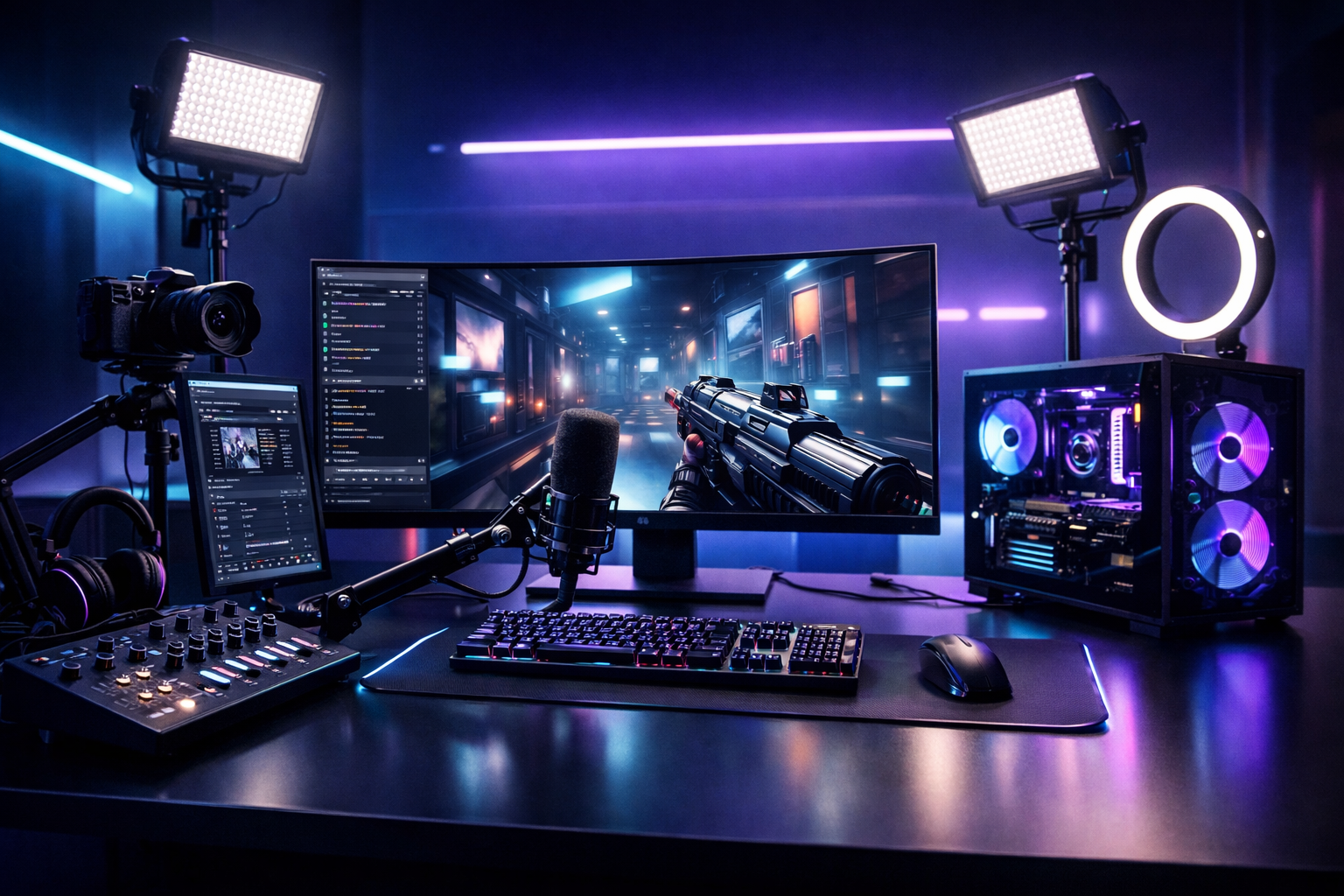
The Ultimate PC Streaming Setup for Gamers in 2026 (for DJs, podcasters & live broadcasters)
Gaming streaming in 2026 isn’t just about pushing frames to a platform—it’s about delivering broadcast-quality audio, stable video, predictable latency, and a workflow that fits your format. Whether you’re a radio DJ doing live mixes, a podcaster recording interviews, a church broadcasting services, a school radio station training students, or a live event streamer covering tournaments, the “best setup” is the one that’s reliable under pressure and easy to run every week.
This guide breaks down a modern PC streaming setup step-by-step: goals, hardware, an audio chain that sounds “finished,” OBS configuration, network tuning, and finally how to go live with Shoutcast Net using a flat-rate hosting model built for broadcasters who want unlimited listeners without surprise bills.
If you want to test the full workflow end-to-end, start with a 7 days trial and build your station/stream first—then refine quality and automation.
What you’ll set up
- A stable PC build for encoding + gaming
- A pro audio chain (mic → interface/mixer → processing → routing)
- OBS scenes, encoding, and loudness-safe levels
- Network settings for consistent bitrate and very low latency 3 sec options
- Shoutcast/Icecast hosting + AutoDJ automation
Table of contents
- Define your streaming goals (DJ sets, podcasts, church, gaming)
- PC hardware checklist for 2026 (CPU/GPU/RAM/storage)
- Audio chain that wins (mic, interface/mixer, processing, routing)
- Streaming software setup (OBS, encoding, scenes, levels)
- Internet & network tuning (bitrate, Wi‑Fi vs Ethernet, latency)
- Go live with Shoutcast Net (Shoutcast/Icecast, AutoDJ, uptime, pricing)
Define your streaming goals (DJ sets, podcasts, church, gaming)
Before you buy gear or tweak OBS, decide what “success” means for your stream. A gamer’s priorities (smooth 1440p capture, overlays, low latency) differ from a radio DJ (clean audio, reliable automation), a podcaster (studio voice + multitrack recording), or a church/school station (speech intelligibility, uptime, remote guest support).
Pick your primary format (then design for the edge cases)
Most creators do more than one format. A school radio station might run student DJ shows, morning announcements, and a sports broadcast. A music streamer may do live DJ sets plus podcast-style interviews. Build for your main show, then ensure your setup can flex without rewiring everything.
| Use case | Top priorities | Common pitfalls |
|---|---|---|
| Gaming + commentary | Stable encoder, clean mic, capture routing, low latency | Overloading CPU, noisy mic, clipping game audio |
| DJ sets / music streams | High-quality audio chain, loudness control, monitoring | Distortion, inconsistent levels, driver conflicts |
| Podcasts | Voice clarity, multitrack/backup recording, remote guests | Echo/room sound, single-point recording failure |
| Church / school / events | Reliability, speech intelligibility, redundancy, automation | Wi‑Fi dropouts, no backup audio, “set and forget” with no monitoring |
Decide: platform-first video, or audio-first broadcasting?
If your audience primarily listens (radio, school station, church), prioritize an audio-first stream with Shoutcast or Icecast distribution and optional video simulcast. If your audience primarily watches (Twitch/YouTube), optimize OBS scenes and encoding first, then feed a clean audio stream in parallel. Many broadcasters run both so they can Restream to Facebook, Twitch, YouTube while keeping a dedicated audio player on their site.
A goal checklist you can actually measure
- Quality target: 1080p60 or 1440p60 video; 128–320 kbps audio depending on format.
- Latency target: chat interaction vs broadcast delay (aim for very low latency 3 sec when the platform/protocol allows).
- Reliability target: your stream must survive reboots, updates, and show handoffs.
- Workflow target: “one button to go live” plus a fallback scene/audio.
- Distribution target: publish to web players + apps and stream from any device to any device.
Pro Tip
Write a one-sentence mission for your stream (example: “Live DJ set every Friday with studio audio and minimal delay”). Every gear and setting decision should support that sentence—especially bitrate, latency, and your audio chain.
PC hardware checklist for 2026 (CPU/GPU/RAM/storage)
A modern streaming PC in 2026 is less about “the most expensive parts” and more about balanced headroom. You want enough CPU for audio plugins, enough GPU for game capture and encoding, fast storage for recordings, and silent cooling so your mic isn’t picking up fans.
Single-PC vs dual-PC streaming
Single-PC is the default now: modern GPUs handle encoding efficiently, and most creators prefer one machine to manage. Dual-PC still makes sense for high-end competitive gaming, tournaments, or production-heavy shows (multiple cameras, NDI sources, lots of overlays).
- Single-PC: simpler, cheaper, fewer failure points.
- Dual-PC: isolates game performance, better redundancy, cleaner capture pipeline.
CPU: prioritize stability for audio + background tasks
Even if you use GPU encoding, your CPU still runs OBS, browser sources, chat bots, audio routing, and sometimes AutoDJ prep tools or recording. Choose a modern multi-core CPU with strong single-core performance and enough threads to avoid spikes.
- Baseline: 8 cores / 16 threads for consistent streaming + gaming.
- Recommended: 12–16 cores if you run heavy scenes, multiple plugins, or multitrack recording.
- Broadcast rigs: prioritize “no surprises” thermals over small benchmark gains.
GPU: pick the encoder ecosystem you trust
For most creators, GPU hardware encoding is the sweet spot: better efficiency, consistent quality, and fewer dropped frames. Choose a GPU that can game at your target resolution while leaving headroom for capture, scaling, and effects.
- 1080p60 streaming: mainstream GPUs are enough if your game settings are sensible.
- 1440p60 streaming: higher GPU headroom helps avoid encoder starvation.
- AV1 support: excellent for quality-per-bitrate when your platform supports it.
RAM: don’t starve your browser sources
Browsers, overlays, chat, music libraries, and DAWs add up. RAM is cheap insurance.
- Minimum: 16 GB (light scenes, limited multitasking).
- Recommended: 32 GB (most streamers, DJs, podcasters).
- Power users: 64 GB (heavy Chrome use, large sample libraries, complex production).
Storage: separate OS/apps from recordings
Fast SSD storage reduces stutters and keeps recording reliable. If you record locally (highly recommended for podcasts and highlights), dedicate a drive for media.
- Drive 1 (NVMe SSD): OS + OBS + plugins + games you stream most.
- Drive 2 (SSD or fast HDD): recordings, replays, podcast sessions.
- Backup: external drive or NAS for archiving.
The overlooked hardware: cooling, noise, and I/O
Broadcasters often underestimate how much fans and coil whine ruin perceived quality. A quiet case, quality PSU, and well-tuned fan curves are “audio gear.” Also ensure you have enough USB ports for interfaces, controllers, webcams, capture cards, and dongles.
Pro Tip
If your mic is within 18 inches of your PC, prioritize a quiet build (larger case fans, better CPU cooler, tuned curves). It’s often a bigger upgrade than buying a more expensive microphone.
Audio chain that wins (mic, interface/mixer, processing, routing)
In 2026, viewers will forgive a slightly softer image before they forgive bad audio. A consistent, intelligible voice (or clean music feed) is what makes you sound “professional,” whether you’re casting a match, hosting a school radio show, or streaming worship music.
Microphone choice: dynamic vs condenser (and why placement beats price)
Dynamic mics are popular for streamers because they reject room noise and are forgiving in untreated spaces. Condenser mics can sound more detailed but capture more of the room (fans, keyboard, reflections). Either can be excellent if you control placement and gain.
- For untreated rooms: dynamic mic + close placement (2–6 inches) + pop filter.
- For treated rooms/studios: condenser mic + careful gain staging.
- For churches/events: consider lavaliers or headset mics for consistent distance.
Interface or mixer: the decision tree
An audio interface is clean and simple. A mixer adds tactile control and can simplify multiple sources (DJ decks, multiple mics, phone input, venue feed).
| Option | Best for | Why it works |
|---|---|---|
| USB audio interface | Podcasters, solo streamers, simple setups | Clean preamps, stable drivers, easy routing |
| USB mixer | DJs, churches, schools, multi-source shows | Physical faders, monitor mixes, quick level changes |
| Digital mixer | Events and broadcast teams | Scenes, built-in processing, multiple buses |
Processing stack: “broadcast polish” without pumping
A simple chain usually beats a complex chain. For voice, start with: noise control → EQ → compression → limiter. For DJ/music, be careful: over-compression can cause listener fatigue and distort codecs.
- Noise control: light noise suppression or gate (avoid harsh gating that chops words).
- EQ: cut low rumble (high-pass), tame harshness, add presence gently.
- Compressor: smooth peaks so you can speak consistently without clipping.
- Limiter: last line of defense to prevent distortion on the stream.
Routing: separate “what you hear” from “what the audience hears”
The most common pro workflow is to create separate mixes: one for your headphones (with extra game audio, cue, or click) and one for the stream (clean, balanced, consistent). This is also where you can support any stream protocols to any stream protocols (RTMP, RTSP, WebRTC, SRT, etc) workflows via software bridges or dedicated tools when you need to take in remote feeds and output to multiple destinations.
A practical level target (voice and music)
If you want fewer complaints about volume, aim for consistent loudness instead of chasing peak meters:
- Voice peaks: keep peaks under -6 dBFS to avoid codec crunch.
- Limiter ceiling: -1 dBFS is a common safe ceiling for streaming.
- Music: avoid aggressive limiting that causes audible distortion after encoding.
# Simple OBS mic filter order (voice)
1) High-pass EQ (80–120 Hz)
2) Compressor (ratio 3:1 to 5:1, medium attack/release)
3) De-esser (if needed)
4) Limiter (ceiling -1.0 dB)
Pro Tip
Treat your room before you “upgrade” your mic: soft furnishings, a rug, and a couple of absorption panels behind/side of your speaking position often deliver a bigger clarity jump than swapping microphones.
Streaming software setup (OBS, encoding, scenes, levels)
OBS Studio remains the core toolkit for streamers because it’s flexible, scriptable, and works for both video-first and audio-first workflows. The winning approach is to build a repeatable scene system that minimizes changes during the show.
Scene architecture: build for “show states”
Instead of a dozen random scenes, think in “states” you can switch to under pressure:
- Starting Soon: countdown, music bed, schedule, chat rules.
- Main: gameplay/camera, alerts, minimal overlays.
- Intermission: BRB screen, sponsor slides, now playing.
- Podcast/Interview: side-by-side cams, lower thirds, cleaner audio mix.
- Emergency: static fallback with “audio only” and a message.
Encoding: choose quality you can sustain, not spikes you can brag about
Dropped frames and unstable bitrate hurt more than slightly lower resolution. For most creators, 1080p60 is still the sweet spot, with 1440p becoming common when bandwidth and GPU headroom allow.
| Target | Typical bitrate range | Who it fits |
|---|---|---|
| 720p60 | 3,500–6,000 kbps | School stations, church streams, remote/limited upload |
| 1080p60 | 6,000–9,000+ kbps | Most gamers, DJs with visual overlays, event streams |
| 1440p60 | 10,000–18,000+ kbps | High-end gaming and tournaments (bandwidth permitting) |
Audio settings: keep it simple and compatible
For broad compatibility, stream audio at 48 kHz. If you’re doing music-focused broadcasting, higher bitrates can help, but the real gains come from clean source audio and sane limiting.
- Sample rate: 48 kHz (match your interface and Windows/macOS settings).
- Track planning: separate mic/music where possible for cleaner post-production.
- Monitor: wear closed-back headphones to catch distortion early.
Color, scaling, and capture best practices
Most “soft” streams are actually scaling issues. Set your canvas to match your primary output, then scale sources cleanly. Capture your game using the most stable method (game capture first, then window capture as fallback), and keep overlays lightweight.
# OBS baseline (general-purpose)
Base (Canvas): 1920x1080
Output (Scaled): 1920x1080
FPS: 60
Encoder: Hardware (GPU)
Keyframe interval: 2s
Rate control: CBR (for most live platforms)
Record locally while you stream (podcasts and highlights)
Local recording protects you from platform outages and compression artifacts. For podcasts, it’s also your “master” audio. If disk space is a concern, record at a high but reasonable quality and archive after editing.
Pro Tip
Create an “Emergency” scene that uses a static image and a single clean audio source. If your game crashes or a capture source breaks, you can switch instantly and stay live while you fix the issue.
Internet & network tuning (bitrate, Wi‑Fi vs Ethernet, latency)
Your stream is only as stable as your upload. In practice, “fast internet” matters less than consistent upload, low packet loss, and predictable routing to your ingest server. This is especially important for churches, schools, and event venues where networks are shared.
Upload speed: budget headroom, not the maximum
A safe rule is to stream at no more than 50–70% of your tested sustained upload speed, leaving room for network variance and other devices.
- Example: If your sustained upload is 10 Mbps, keep your stream around 5–7 Mbps.
- For audio-only: 128–320 kbps is light, but reliability still depends on packet loss and jitter.
- For events: consider a dedicated uplink or bonded connection if possible.
Ethernet vs Wi‑Fi: the honest answer
Ethernet wins for streaming reliability. Modern Wi‑Fi can be fast, but it’s more vulnerable to interference, roaming, congestion, and power-saving quirks. If you must use Wi‑Fi, lock your PC to a strong 5/6 GHz signal, keep drivers updated, and avoid crowded channels.
Latency choices: interaction vs safety
Low latency improves chat interaction and live event engagement. However, ultra-low delay can be less forgiving on unstable networks. When possible, configure for very low latency 3 sec while keeping a fallback profile (slightly higher latency) for busy networks.
QoS and router basics (small changes, big stability)
- Prioritize your encoder: QoS rules that prioritize your streaming PC can reduce spikes.
- Disable bufferbloat: SQM/Smart Queue (if your router supports it) can smooth uploads.
- Separate networks: put guest Wi‑Fi on its own VLAN/SSID for venues and churches.
- Use modern DNS: sometimes improves stability for platform connections.
Monitoring: don’t guess, measure
Use OBS stats (dropped frames, render lag, network) and keep a second device monitoring the live stream. The goal is to spot issues early and switch to a backup bitrate or scene before the audience notices.
Pro Tip
Run a 30-minute private test stream at your planned bitrate while someone else uses the internet normally. If your stream survives that “real life” test, it’s far more likely to survive show day.
Go live with Shoutcast Net (Shoutcast/Icecast, AutoDJ, uptime, pricing)
Once your PC setup is solid, your next bottleneck is distribution: where does the stream live, how do listeners connect, and how do you keep the show going when you’re offline? That’s where Shoutcast Net turns a “stream” into a station—with hosting designed for creators who want reliability, automation, and predictable costs.
Shoutcast vs Icecast: which should you choose?
Both can be excellent. Your choice depends on client compatibility, workflow, and the features you need. Shoutcast Net supports both Shoutcast hosting and icecast, so you can pick what fits your station today and still have room to evolve.
| Feature | Shoutcast | Icecast |
|---|---|---|
| Listener compatibility | Excellent for radio-style players | Excellent, very flexible |
| Use cases | Stations, DJs, live radio shows | Stations, apps, custom workflows |
| Flexibility | Strong, but older “legacy Shoutcast limitations” can appear on some stacks | Highly configurable mounts and formats |
Why Shoutcast Net is built for broadcasters (not surprise billing)
Many creators consider enterprise video middleware and quickly run into the same problem: unpredictable costs. Wowza is a classic example of expensive per-hour/per-viewer billing that can spike during a raid, a school event, or a holiday broadcast. Shoutcast Net is different: it’s designed for broadcasters who want a flat-rate unlimited model that scales without punishing growth.
- Starting at $4/month with predictable pricing
- Unlimited listeners on plans built for real stations
- 99.9% uptime for dependable shows and schedules
- SSL streaming for modern browsers and secure playback
- 7-day free trial so you can test before committing
If you want to start immediately, launch a server from the shop or activate a 7 days trial and go live today.
AutoDJ: keep your station live 24/7
Live shows are powerful—but listeners also expect consistency. With AutoDJ, you can upload playlists, schedule rotations, and keep content playing when you’re not at the PC. That means your gaming stream can end, but your station stays active with music, bumpers, sermons, replays, or student programming blocks.
Learn more about AutoDJ and how it fits alongside live broadcasting.
A modern distribution mindset: one feed, many destinations
In 2026, creators rarely live on one platform. You might run an audio stream on your site, simulcast video to social platforms, and archive episodes as podcasts. With Shoutcast Net at the core, you can build a hub that’s designed to stream from any device to any device—listeners on desktop, mobile, smart speakers, and embedded players.
You can also build workflows that bridge any stream protocols to any stream protocols (RTMP, RTSP, WebRTC, SRT, etc) using the right tools in your production stack, then route your final program feed into Shoutcast/Icecast for stable listening at scale.
And when you want maximum reach, you can Restream to Facebook, Twitch, YouTube while your Shoutcast Net stream remains the reliable “home base” your audience can always find.
Quick start: go live in a clean, repeatable way
A straightforward workflow for DJs, podcasters, churches, schools, and gamers is:
- Step 1: Choose Shoutcast hosting or icecast based on your player/app needs.
- Step 2: Configure your encoder (OBS or your audio encoder) with the provided server IP, port, and password.
- Step 3: Test audio levels (no clipping), then run a 15-minute private test stream.
- Step 4: Enable AutoDJ for off-hours so your station never goes silent.
- Step 5: Publish the player on your website and share one consistent link everywhere.
# Pre-flight checklist (copy/paste)
- OBS stats show 0 dropped frames (network) for 10+ minutes
- Mic peaks under -6 dBFS; limiter ceiling set to -1 dBFS
- Backup scene created and tested
- Ethernet connected (preferred)
- AutoDJ playlist scheduled for after the show
Pro Tip
Avoid “platform lock-in” by treating your Shoutcast Net stream as the source of truth. Social platforms can change policies or degrade reach overnight, but a flat-rate Shoutcast/Icecast station with AutoDJ keeps your brand and audience connection stable—without Wowza-style expensive per-hour/per-viewer billing surprises.
Ready to build your station?
Start with a plan that fits your audience now, then scale without worrying about listener spikes.
- $4/month starting price
- 99.9% uptime + SSL streaming
- Unlimited listeners (plan-dependent, designed for growth)
- AutoDJ for 24/7 playback
Need hosting links
Jump directly to the service that matches your stream type:
- Shoutcast hosting for classic radio workflows
- Icecast hosting for flexible mounts and modern routing
- AutoDJ for automation when you’re offline