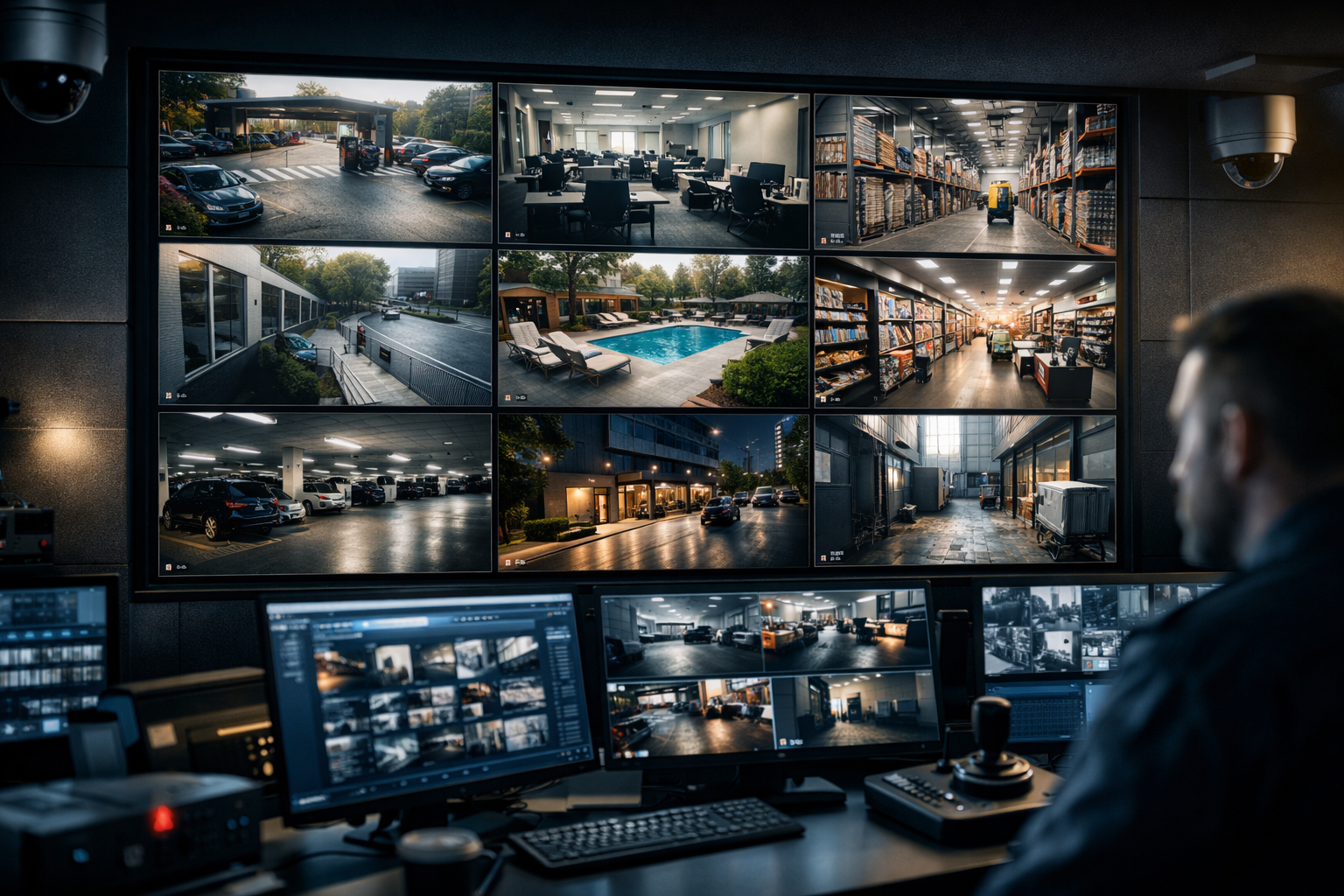
RTSP streaming IP cameras are no longer just for security control rooms. In 2026, broadcasters, churches, schools, DJs, and event organisers are using RTSP-enabled cameras to deliver live video feeds across websites, apps, and global streaming platforms.
Whether you want to stream a church service, broadcast a live DJ booth cam, monitor a studio, or run a 24/7 event stream, understanding how RTSP works — and how to convert it into a reliable public broadcast — is essential.
This complete guide explains what RTSP is, how it works with IP cameras, how it compares to RTMP and HLS, and how to stream RTSP cameras online reliably using professional hosting platforms.
What Is RTSP Streaming for IP Cameras?
RTSP (Real-Time Streaming Protocol) is a network control protocol designed to establish and manage media streaming sessions between a server and a client. It is widely used by IP cameras, CCTV systems, NVRs, and hardware encoders.
When you access an IP camera using a URL like:
rtsp://192.168.1.50:554/stream1you're opening a real-time video feed directly from the device. RTSP itself does not carry the video data — it controls the session. The actual media is usually transmitted using RTP (Real-time Transport Protocol).
Where RTSP Is Commonly Used
- Security camera systems
- Church sanctuary cameras
- School campus monitoring
- DJ booth live cams
- Event venue surveillance
- Studio behind-the-scenes streams
The problem? RTSP is not web-friendly. Browsers do not natively support RTSP streams. That’s why broadcasters must convert RTSP into RTMP, HLS, or another web-compatible format before streaming publicly.
Pro Tip
RTSP works best inside local networks. For public broadcasting, always restream it through a professional streaming server for stability, scalability, and security.
How RTSP Works with IP Cameras & Encoders
To use RTSP effectively for broadcasting, you need to understand the signal chain.
Typical RTSP Workflow
- Step 1: IP Camera captures video.
- Step 2: Camera encodes video (H.264 or H.265).
- Step 3: RTSP server inside the camera makes the stream available.
- Step 4: Software (OBS, VLC, encoder) pulls the RTSP feed.
- Step 5: Stream is converted to RTMP or HLS for online broadcasting.
Common RTSP URL Format
rtsp://username:password@camera-ip-address:554/liveMost cameras use port 554 by default. Always secure credentials and avoid exposing cameras directly to the public internet.
Using RTSP in OBS Studio
- Add a new source
- Select “Media Source”
- Uncheck “Local File”
- Paste the RTSP URL
From there, you can broadcast via RTMP to a streaming provider for distribution.
Pro Tip
If your RTSP feed stutters, reduce the camera bitrate or switch from H.265 to H.264 for better compatibility with streaming software.
RTSP vs RTMP vs HLS: Which Should Broadcasters Use?
Choosing the right protocol depends on your goal: internal monitoring or public broadcasting.
| Protocol | Best For | Browser Support | Latency |
|---|---|---|---|
| RTSP | Local camera feeds | No | Very Low |
| RTMP | Encoder to server | No (input protocol) | Low |
| HLS | Public streaming | Yes | Medium |
For DJs & Radio Stations
If you want to add video to your Shoutcast or Icecast stream, the best workflow is:
- RTSP Camera → OBS
- OBS → RTMP
- Streaming Server → HLS delivery
For pure audio radio, a dedicated Shoutcast hosting plan starting from just $4/month is more efficient than trying to push RTSP directly.
Pro Tip
Think of RTSP as your camera’s internal language. Convert it to RTMP for transport and HLS for viewer playback.
How to Stream RTSP IP Cameras Online (Step-by-Step)
Step 1: Get Your RTSP URL
Log into your IP camera admin panel and enable RTSP streaming.
Step 2: Add to OBS
Add the RTSP feed as a Media Source.
Step 3: Configure Streaming Server
Choose a professional streaming provider. With Shoutcast Net you get:
- Plans starting at $4/month
- 99.9% uptime guarantee
- Unlimited listeners
- SSL (HTTPS) streaming
- 7-day free trial
You can start instantly via 7-day free trial.
Step 4: Enter RTMP Details in OBS
Server: rtmp://yourserver:port/live
Stream Key: yourstreamkey
Step 5: Embed HLS Player on Website
Your hosting provider will generate a web player or HLS link for embedding.
Pro Tip
Always test locally before promoting your stream. Monitor CPU usage, upload bandwidth, and dropped frames.
Best Server Setup for Reliable 24/7 RTSP Streaming
For 24/7 streams such as security cams, church altars, or studio cams, reliability is everything.
Recommended Setup
- Wired Ethernet connection
- Static IP camera internally
- OBS running on dedicated PC or mini server
- Professional streaming host
For audio-only stations, use AutoDJ hosting to keep your stream live even if your encoder disconnects.
If you're running Icecast instead of Shoutcast, explore Icecast hosting options for compatibility.
Pro Tip
Never stream directly from a home internet connection without a relay server. A professional host absorbs traffic spikes and protects your local network.
Security, Bandwidth & Performance Optimization Tips
Secure Your Camera
- Change default passwords
- Disable unused services
- Block WAN access
- Use VPN for remote access
Optimize Bitrate
For most broadcasters:
- 720p: 2–4 Mbps
- 1080p: 4–8 Mbps
- Use CBR for stable streaming
Monitor Performance
Watch for:
- Dropped frames in OBS
- CPU overload
- Upload saturation
- Packet loss
Pro Tip
Keep upload usage under 70% of your maximum bandwidth to prevent buffering during peak times.
RTSP streaming IP cameras are powerful tools — but only when integrated properly into a professional streaming workflow.
Whether you're running a church broadcast, DJ live cam, studio feed, or school radio station, combining RTSP cameras with reliable streaming infrastructure ensures smooth delivery worldwide.
Ready to launch your broadcast? Explore affordable plans starting from just $4/month in our streaming shop or start your 7-day free trial today.