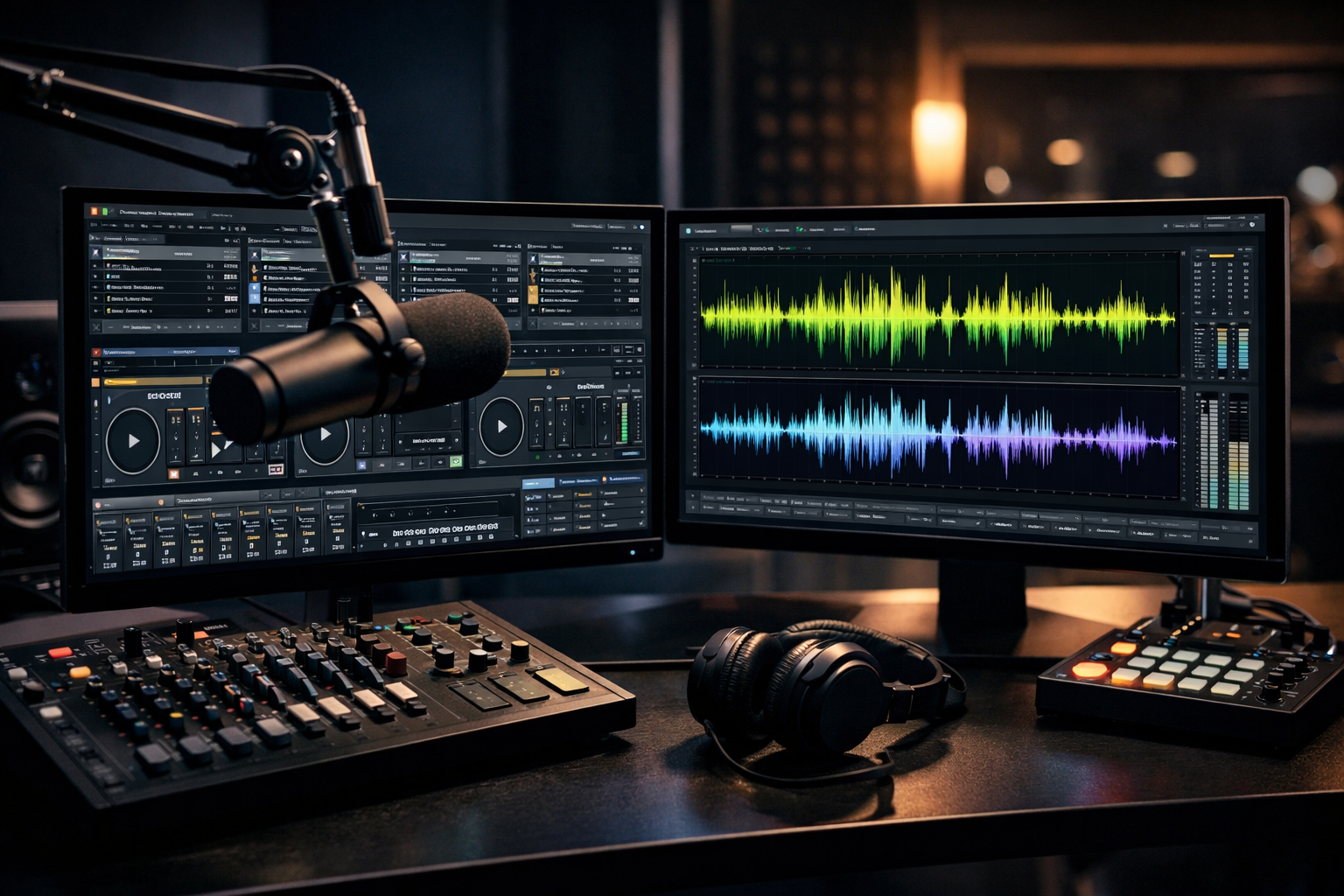
Setting up SAM Broadcaster with Shoutcast is one of the most reliable ways to launch a professional online radio station in 2026. Whether you're a radio DJ, music streamer, podcaster, church broadcaster, school radio station, or live event host, this step-by-step guide will walk you through the entire process — from getting your server details to going live.
If you don’t yet have a Shoutcast server, you can get started with affordable Shoutcast hosting from just $4/month, including SSL streaming, AutoDJ, 99.9% uptime, unlimited listeners, and a 7-day free trial.
Step 1: Get Your Shoutcast Server Details
Before opening SAM Broadcaster, you need your Shoutcast server credentials. These are provided by your streaming host when you purchase a plan.
What Details You’ll Need
- Server Address (Hostname or IP)
- Port Number
- Stream ID (for Shoutcast v2)
- Password
- Stream URL
If you're hosting with Shoutcast Net, you’ll find these inside your control panel immediately after signup. Our plans start at just $4/month and include AutoDJ and full Shoutcast v1 and v2 compatibility.
Pro Tip
Always copy and paste your server details directly from your hosting panel to avoid typos. A single incorrect character in the password or port will prevent your stream from connecting.
Step 2: Install and Configure SAM Broadcaster
If you haven’t already installed SAM Broadcaster, download the latest version from the official website and complete the installation process.
Initial Setup Wizard
During installation, SAM will guide you through:
- Selecting your audio devices
- Choosing your audio library database
- Setting up music folders
For most users, the default database settings are fine. If you're running a professional 24/7 station, MySQL is recommended for better performance.
Audio Device Configuration
Go to Config → Audio Mixer Pipeline and ensure:
- Your microphone input is correctly selected
- Your output device matches your sound card
- Levels are not clipping (keep peaks below 0 dB)
Pro Tip
Use a USB condenser microphone and monitor with headphones to avoid feedback. Clean audio quality keeps listeners engaged longer.
Step 3: Add a Shoutcast Encoder in SAM
The encoder is what sends your audio from SAM Broadcaster to your Shoutcast server.
How to Add the Encoder
- Open the Encoders window
- Click the + button
- Select MP3 (LAME) or AAC+
- Choose Shoutcast v2 (recommended)
Most modern broadcasters use Shoutcast v2 with AAC+ for better sound quality at lower bitrates.
| Format | Best For | Quality Efficiency |
|---|---|---|
| MP3 | Maximum compatibility | Good |
| AAC+ | Mobile & low bandwidth listeners | Excellent |
Pro Tip
If your audience listens mainly on smartphones, AAC+ at 64kbps often sounds as good as MP3 at 128kbps while using half the bandwidth.
Step 4: Enter Shoutcast Server Settings
Now it’s time to enter your Shoutcast server details into the encoder settings.
Fill in the Required Fields
Inside the encoder configuration window, enter:
Server Address: yourserver.shoutcastnet.com
Port: 8000
Stream ID: 1
Password: yourpassword
- Address: Your server hostname
- Port: Provided in your control panel
- Stream ID: Usually 1 (for Shoutcast v2)
- Password: Your source password
If you're using SSL streaming (recommended for 2026), ensure your host supports it. Shoutcast Net includes SSL streaming on all plans.
Pro Tip
Double-check whether your plan uses Shoutcast v1 or v2. Most modern servers use v2, which requires a Stream ID.
Step 5: Configure Audio Bitrate and Format
Choosing the right bitrate affects both sound quality and listener accessibility.
Recommended Bitrates
| Bitrate | Use Case |
|---|---|
| 64 kbps AAC+ | Talk radio, mobile listeners |
| 128 kbps MP3 | Music stations (standard quality) |
| 192 kbps MP3 | High-quality music streaming |
For most online radio stations, 128 kbps MP3 or 64 kbps AAC+ is the sweet spot between quality and bandwidth usage.
If you’re using AutoDJ as a backup, match the bitrate settings in both SAM and your AutoDJ panel for consistent listener experience.
Pro Tip
Avoid broadcasting at very high bitrates unless necessary. Higher bitrates consume more bandwidth and may exclude listeners with slower internet connections.
Step 6: Connect and Start Broadcasting
You’re ready to go live.
Start the Encoder
- Return to the Encoders window
- Click the Start (Play) button
- Wait for the status to show Encoding
If everything is correct, SAM will connect to your Shoutcast server and begin streaming immediately.
Verify Your Stream
Test your stream by:
- Opening your stream URL in a browser
- Checking your Shoutcast control panel for listener stats
- Testing playback on mobile devices
With Shoutcast Net, you’ll also have real-time listener stats, 99.9% uptime reliability, and scalable plans with unlimited listeners — perfect for growing stations.
Pro Tip
Always run a private test stream before announcing your official launch. This ensures audio levels, metadata, and connections are working properly.
Ready to Launch Your Station?
Setting up SAM Broadcaster with Shoutcast is straightforward once you understand the steps. With reliable hosting, proper encoder configuration, and optimized audio settings, you can deliver professional-quality streaming to listeners worldwide.
If you need fast, affordable, and reliable streaming, check out our Shoutcast hosting plans starting at just $4/month — or try it free for 7 days with no risk.
Whether you're running a 24/7 music station, broadcasting church services, hosting a school radio program, or streaming live DJ sets, Shoutcast Net provides the tools you need to succeed in 2026 and beyond.